
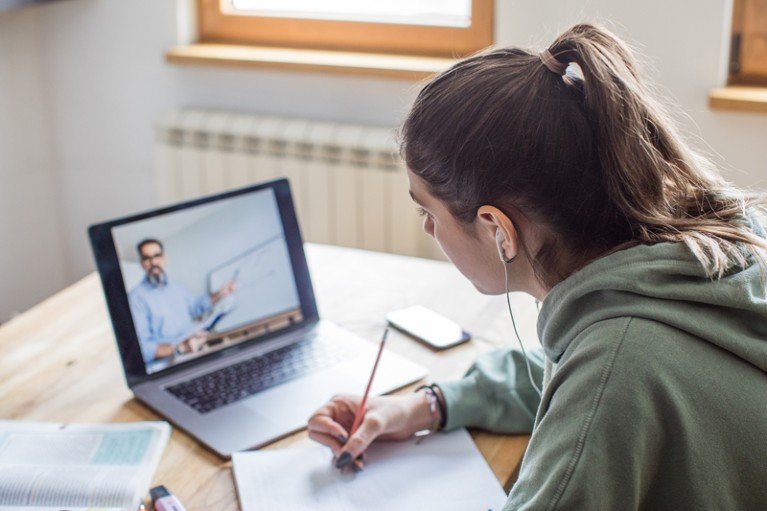
The question “can Canvas see if you copy and paste?” is common among students who use Canvas to submit assignments or take online quizzes. Canvas is a learning management system used by schools and universities to distribute course materials, collect work, manage grades, and provide communication tools. It records some forms of course and assessment activity, but that does not mean a standard Canvas course automatically records every keyboard action or clipboard event on a student’s device.
The most accurate answer is that ordinary Canvas activity tools do not generally provide instructors with a direct record saying that a student pressed Copy or Paste. However, instructors may have access to assignment submissions, quiz logs, course activity analytics, plagiarism-detection tools, or third-party proctoring systems depending on the institution’s configuration. It is important to understand what each feature does and what it cannot prove.
What Canvas Is Designed to Record
Canvas provides learning and course-management functions. Depending on permissions, course setup, and enabled features, instructors may see assignment submissions, grades, quiz attempts, course-page activity, and certain event information. Course analytics can show information such as page views, participation, submissions, and grades. These records help instructors understand whether students are interacting with course materials and completing work.
Those records are not the same thing as a complete recording of a student’s computer. A page-view count does not show every thought, keystroke, copied sentence, or application used while studying. A submitted assignment shows the file or text that was submitted, not necessarily the entire process by which it was created. An instructor should interpret Canvas data within its limits and avoid treating an activity indicator as conclusive proof of misconduct.
Does Standard Canvas Detect the Copy and Paste Shortcut?
In a normal Canvas course, there is not a standard instructor-facing clipboard log that identifies each time a student uses Ctrl+C, Ctrl+V, Command+C, or Command+V. Clipboard actions are operating-system and browser interactions. Canvas’s ordinary activity reporting is not the same as a keylogger or a live recording of every action on a device.
This does not mean that every institution has identical settings or that no additional software can collect extra information. Schools may integrate separate browser-monitoring, proctoring, or academic-integrity tools. The capabilities of those systems depend on the software, permissions, assessment configuration, and policies. Students should read the institution’s instructions rather than assume all quizzes use only standard Canvas features.
What Are Canvas Quiz Logs?
Canvas quiz logs can provide information about activity during a quiz attempt, depending on the quiz type and the institution’s configuration. The log may include events such as a question being viewed, an answer being selected or changed, or the student navigating away from the quiz-taking page and later returning. These details can help an instructor understand the sequence of activity during an assessment.
A quiz log should not be interpreted as a complete account of the student’s computer. For example, a log showing that the student stopped viewing the quiz page does not reveal exactly what the student did next. It may not identify whether the student opened course notes, changed windows accidentally, experienced a browser interruption, or used another permitted resource. Context matters, and a log entry by itself should not be treated as proof that a student copied material.
Classic Quizzes and New Quizzes
Canvas has supported different quiz experiences, including Classic Quizzes and New Quizzes. The available tools, log details, and instructor workflow may differ by quiz type and institutional configuration. Some institutions may have enabled features or permissions that are not available in another institution. Instructors should use the official guide for the quiz tool used in their course rather than assume that an old screenshot or tutorial describes the current interface.
Students should follow the assessment instructions for the specific quiz. A closed-book test, open-book quiz, permitted calculator assessment, or resource-based assignment may have very different rules. If the instructions are unclear, ask the instructor before the assessment. Do not assume that a resource is permitted simply because Canvas does not display a warning when it is opened.
Can Instructors See if You Leave the Quiz Page?
Some quiz log information may indicate when a student stops viewing the quiz-taking page and when they return. This can be relevant to an instructor’s review of a quiz attempt, but it does not show the full contents of another browser tab or another application. It is also not necessarily evidence of misconduct. A student may navigate away by mistake, receive a system notification, experience a browser issue, or need to address an accessibility or technical problem.
Instructors should consider the course rules, assessment instructions, event sequence, and any explanation from the student. A single event should not be treated as a complete narrative. If a student has a legitimate reason to leave the quiz page, they should follow the instructor’s procedure and report technical problems promptly.
What About Course Analytics and Page Views?
Course analytics can show how a student interacts with course content. This may include page views, participation, assignment submission status, and grades. These measurements can help instructors notice patterns such as a student not opening course materials or accessing a resource shortly before an assignment deadline. They do not provide a minute-by-minute record of every action taken outside Canvas.
A page view does not prove that a person read and understood a page. A student may open a resource and leave it in another tab, while a page may load automatically through a browser action. Instructors should use analytics as one source of context rather than an exact measure of attention, learning, or authorship. The same caution applies when interpreting missing activity: technical issues and course settings may affect what appears in a report.
Can Plagiarism-Detection Tools Identify Copying?
Some institutions connect Canvas assignments to plagiarism or similarity-detection systems. These tools may compare submitted work against web pages, published sources, academic databases, or previously submitted student work. They generally analyze the submitted text or document rather than directly observing the clipboard event that created it.
A similarity report is not an automatic verdict. Common phrases, quotations, reference lists, templates, and properly cited material can produce matches. Conversely, a low similarity score does not prove that a piece of writing is original or correctly attributed. Instructors should review the matching passages, source context, citation style, assignment rules, and student’s explanation. Students should cite sources properly and follow the institution’s academic-integrity policy.
What About AI-Detection Features?
Some schools use AI-writing indicators or external tools as part of academic-integrity reviews. These tools are different from clipboard monitoring. They may estimate whether a text has characteristics associated with generated writing, but their output can be uncertain and should not be treated as conclusive proof of authorship. A detector result should be reviewed alongside drafts, notes, citations, assignment history, and a conversation with the student.
Students should follow their course’s policy on AI tools. Some instructors allow brainstorming or grammar support but require disclosure; others restrict AI-generated writing for particular assessments. Ask what is permitted, whether disclosure is needed, and whether the tool may be used for drafting, editing, coding, translation, or research. The safest approach is transparent use that follows the stated rules.
Can Respondus or Other Proctoring Tools Monitor More?
Some institutions use third-party proctoring or browser-locking software with Canvas. These tools may restrict certain browser actions, verify identity, record a webcam or screen when configured, or collect additional assessment information. The exact capabilities depend on the product, license, institution settings, and consent or notice procedures.
Do not assume that every Canvas quiz uses proctoring, and do not assume that a proctoring tool captures every possible activity. Read the course instructions and the institution’s privacy notice for the specific assessment. If a feature creates a concern related to disability access, technology availability, privacy, or data retention, contact the instructor or institution through the appropriate channel before the exam.
How Should Instructors Interpret Activity Evidence?
Instructors should distinguish between a direct observation, a system log, a similarity match, and an inference. A submitted answer that matches a source is evidence that the text is similar; it does not automatically show when or how the student copied it. A quiz log may show page activity; it does not necessarily identify every action taken elsewhere. A proctoring alert may identify an event for review; it should be checked against the assessment context.
A fair review process should include the assignment policy, the student’s explanation, relevant drafts or version history, source citations, and any technical circumstances. Students should have an opportunity to clarify what happened. A system should not be used beyond what it can reliably establish, and institutions should follow their own academic-integrity procedures.
How Students Can Avoid Accidental Academic-Integrity Problems
Read the assignment and quiz instructions before beginning. If an assessment is closed-book, do not use notes, websites, messaging apps, or other resources unless the instructor explicitly allows them. If it is open-book, use only the resources permitted by the policy. Keep track of sources when researching, use quotation marks for exact wording, and cite material according to the required style.
For written assignments, keep drafts, outlines, notes, and source lists. These records can help explain the development of your work if an instructor has a question. If you use a permitted writing or accessibility tool, follow the disclosure requirements. If you accidentally paste text without quotation marks or citation, correct the work before submission where the assignment rules allow it, and ask the instructor if you are uncertain.
What to Do if You Have a Technical Problem During a Quiz
If Canvas freezes, the browser crashes, or the quiz page unexpectedly stops responding, record the time and what occurred. Follow the institution’s instructions for contacting the instructor or technical support. Avoid repeatedly refreshing or reopening the assessment unless the course instructions say to do so, because some quiz settings can affect attempts or submission status.
When you report a problem, provide factual details: the course, quiz name, approximate time, browser and device, any error message, and the action you took. Avoid making assumptions about what the system did. The instructor or support team can review the available information and determine whether an attempt needs to be reopened or another accommodation is appropriate.
How Institutions Should Explain Monitoring to Students
Clear assessment instructions should identify whether the quiz is open-book or closed-book, whether external websites are permitted, whether a proctoring tool is required, and what data may be collected. Students should be told how to request accommodations and whom to contact for technical problems. Clear communication reduces confusion and makes it easier to distinguish an accidental issue from a possible policy violation.
Institutions should also explain how records are retained, who can see them, and how students can raise concerns. Tools should be selected and configured in line with privacy, accessibility, and educational requirements. A monitoring system can support integrity, but it should not replace good assessment design, clear expectations, and fair review.
Official and Community References
Canvas’s Canvas Basics Guide describes instructor capabilities such as course analytics, grades, and usage reports. The Instructure Community also provides instructions and discussions about student quiz logs and course access reports. Because available features can vary by institution and quiz type, use your school’s current Canvas help resources for the exact assessment setup.
Frequently Asked Questions
Can Canvas see if you copy and paste?
Standard Canvas activity reporting does not generally provide instructors with a direct clipboard log showing each copy or paste action. Separate monitoring or proctoring tools may have additional capabilities depending on institution settings.
Can Canvas instructors see when a student leaves a quiz?
Depending on the quiz type and configuration, quiz logs may show that a student stopped viewing the quiz page and later returned. This does not reveal exactly what the student did elsewhere or prove misconduct by itself.
Can Canvas detect plagiarism?
Canvas may be integrated with similarity or plagiarism-detection tools. These tools compare submitted content with sources; they do not necessarily detect the physical copy-and-paste action.
Can a proctoring tool monitor more than Canvas?
Yes, some third-party tools can restrict browser activity or collect additional assessment information when enabled. The exact capabilities depend on the software and institution configuration.
What should I do if I am unsure whether copying is allowed?
Read the assessment instructions and ask the instructor before using outside material. Follow citation and disclosure rules, and keep drafts and source notes for written assignments.
Conclusion
Canvas does not ordinarily give instructors a simple clipboard history showing every copy-and-paste action. It can provide course analytics, assignment records, and quiz activity information, while separate plagiarism-detection or proctoring tools may add other forms of review. These systems have limits: a page-view event, quiz log, or similarity match is not automatically proof of copying. Students should follow the specific course rules, cite sources, and ask questions when instructions are unclear; instructors should interpret technical records carefully and fairly.
